Run a Validator Node
The Shardeum mainnet has successfully upgraded to v1.1.0 (Cosmos EVM v0.6.3). Network operations have resumed, and v1.1.0 is the current mainnet release. New nodes syncing from genesis must follow the historical binary instructions in the Start and Sync the Node section below.
View upgrade details | Download v1.1.0
A validator node participates in block production and consensus, requires staking, and must maintain high uptime. Validators can be jailed or slashed for misbehavior.
This guide describes how to install, configure, and operate a validator node on Shardeum EVM mainnet.
1. System Requirements
- Operating System: Ubuntu 22.04 LTS
- CPU: 4 cores (8 threads)
- RAM: 16GB
- Storage: 1TB NVMe SSD
- Network: 100 Mbps dedicated
- Dependencies: git, jq, curl, make, build-essential, pkg-config
- Go: Version 1.25+
Install dependencies:
Install Go:
2. Install Shardeum Node Binary
Fetch the latest release tags and check out the supported mainnet release:
Build and install the binary (may take several minutes):
Add Go bin directory to PATH:
Verify the installation:
3. Set Environment Variables
Set the config from the base folder of the source code (shardeum-evm):
4. Initialize the Node
PLEASE ENSURE YOUR KEYS ARE SECURED PROPERLY
Choose identifiers:
Initialize:
5. Copy Genesis File
Copy the genesis file from the repository:
Check that the genesis file has been copied correctly:
Validate the genesis file and check chain ID:
The expected chain ID value is:
6. Start and Sync the Node
Before You Start: Syncing a New Node From Genesis After a State-Breaking Upgrade
Skip this section if your node is already synced past the latest upgrade height or if you are restoring from a compatible post-upgrade snapshot.
If a compatible post-upgrade snapshot is available, use the snapshot to bootstrap the node with the current binary. The Cosmovisor instructions below are only for nodes syncing from genesis.
When syncing a new node from genesis after a state-breaking upgrade, the node must use the binary version that corresponds to each part of the chain history.
For the current Shardeum mainnet chain history:
- Use
v1.0.2to sync from genesis until the upgrade at height7,927,860. - At the upgrade, Cosmovisor switches the node to
v1.1.0. - Continue syncing with
v1.1.0.
Use Cosmovisor to manage the binary switch at the upgrade height.
Set Up Cosmovisor and the Required Binaries
Install Cosmovisor:
Cosmovisor uses the node's home directory to store and manage the binaries required for each part of the chain history. Set the required environment variables:
Run the remaining Cosmovisor commands in the same shell session so these environment variables remain available.
Download the required Shardeum binaries from the official releases:
Important: Use the current
v1.0.2binary from the official release. An earlierv1.0.2binary published before October 16, 2026 cannot replay Shardeum mainnet from genesis.
Verify the SHA-256 checksums:
Both commands should return OK.
Make the binaries executable:
Initialize Cosmovisor with v1.0.2 as the genesis binary:
Add v1.1.0 using the exact upgrade name:
Verify that both binaries are in place:
Cosmovisor starts with v1.0.2. When the node reaches the upgrade at height 7,927,860, it detects the onchain upgrade and switches to v1.1.0 automatically.
Start a Genesis Sync With Cosmovisor
If you followed the genesis-sync instructions above, start the node through Cosmovisor:
Watch the logs:
Start the Node Normally
If you skipped the genesis-sync section because your node is already past the latest upgrade height or you restored from a compatible post-upgrade snapshot, start the node normally:
Watch the logs:
7. Check Sync Status
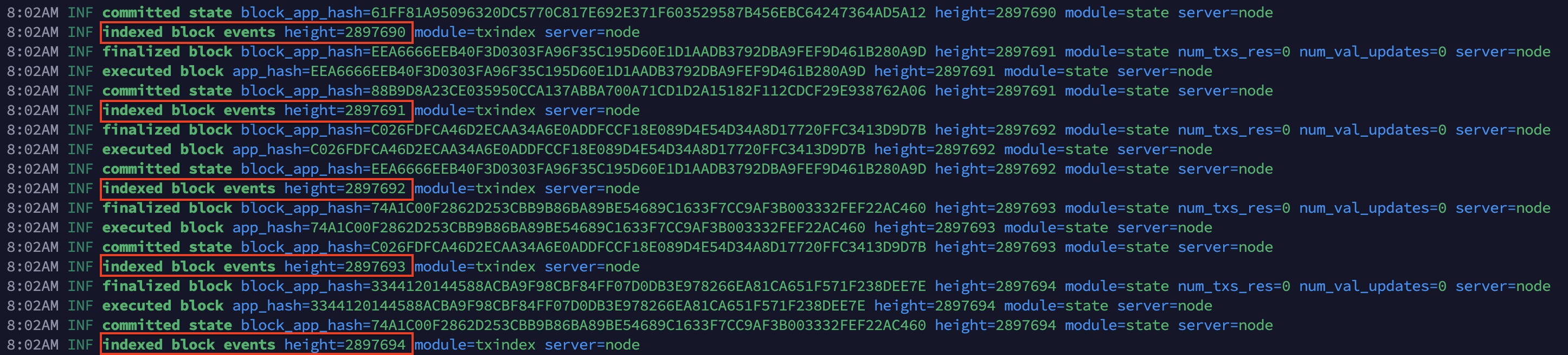
Look for lines similar to:
If the number after height keeps increasing, your node is syncing correctly.
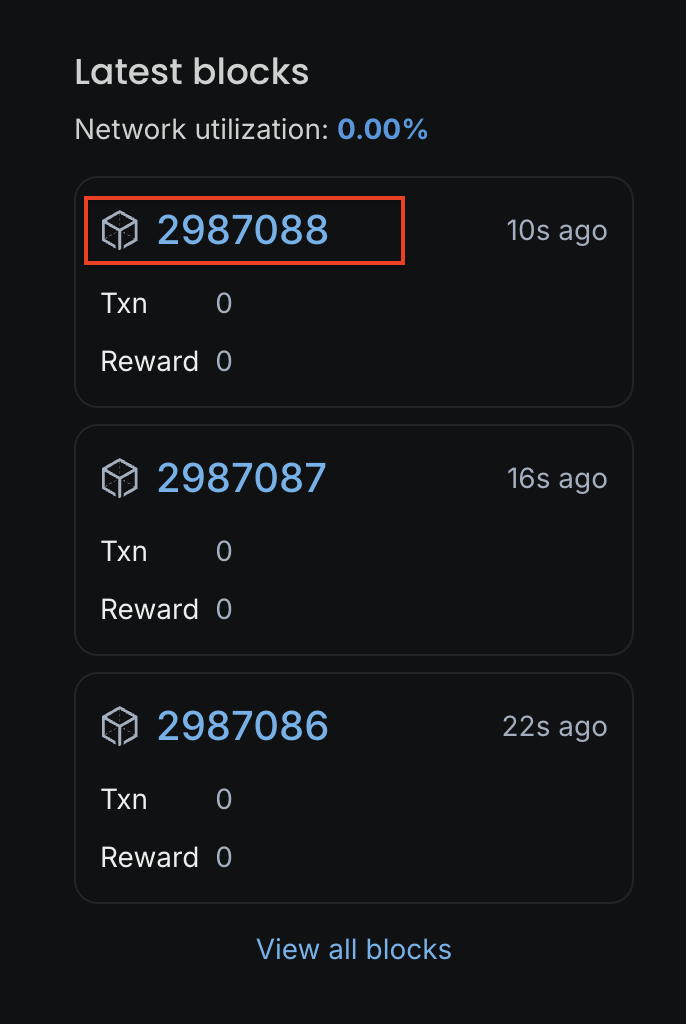
When the height matches the latest block shown on the explorer, your node is fully synced.
8. Create the Validator Key (After Sync)
IMPORTANT: Perform this step only after the node is fully synced.
PLEASE ENSURE YOUR KEYS ARE SECURED PROPERLY
Open a new terminal and move into the repo:
Set the required environment variables:
Create a new validator key:
or restore an existing key instead, use:
You will be prompted to set a password:
CRITICAL: Save your mnemonic phrase securely. It is the only way to recover your validator account.
Retrieve your validator address:
Make sure you store your validator keys using a secure method you trust and follow a backup process you are comfortable with.
9. Fund Your Validator Account
Your validator account must have enough SHM for:
- Minimum stake: 1 SHM
- Gas fees for create-validator: ~1024 SHM
- Total recommended: 1025 SHM or more
Funding Options:
- MetaMask (RPC: https://api.shardeum.org)
- Keplr: Add Shardeum to Keplr (https://chains.keplr.app/) wallet and transfer tokens
- Exchange: Withdraw SHM to your validator address
Verify your balance:
Example output:
10. Create Your Validator and Stake Tokens
Get your validator public key:
Get your validator consensus key:
If your node ID is node0, replace $NODE_ID with node0.
Example output:
Copy the value inside the key. You will need it in the next step.
Create the validator.json file
Open the file:
Paste the following template and replace the key and details as needed:
Optional: Add identity, website, and details
Save and exit:
- Ctrl+O
- Press Enter
- Ctrl+X
Create your validator
Run:
Enter your keyring passphrase when asked.
You will see a full preview of the transaction. The system will then ask:
Type y and press Enter.
A successful result shows:
11. Verify Your Validator Status
Check that the validator is registered:
You should see output containing:
Success indicators:
- Status:
BOND_STATUS_BONDED - Voting power: > 0
- Jailed:
false
Validator showing jailed: true? See Unjailing a Validator
For guidance on validator troubleshooting, debugging, monitoring, and performance best practices, continue to the Advanced Operations section.